Documentation Index

Fetch the complete documentation index at: https://assemblyai.com/docs/llms.txt

Use this file to discover all available pages before exploring further.

This guide walks through the process of setting up a transcription pipeline for Amazon Connect recordings using AssemblyAI.

Get Started

Before we begin, make sure you have:
  • An AssemblyAI account and an API key. You can sign up for a free account and get your API key from your dashboard.
  • An AWS account.
  • An Amazon Connect instance.

Step-by-Step Instructions

1
In the AWS console, navigate to the Amazon Connect services page. Select your instance and then click into the Data Storage section. On this page, find the subsection named Call Recordings and note the S3 bucket path where your call recordings are stored, you’ll need this for later.

2
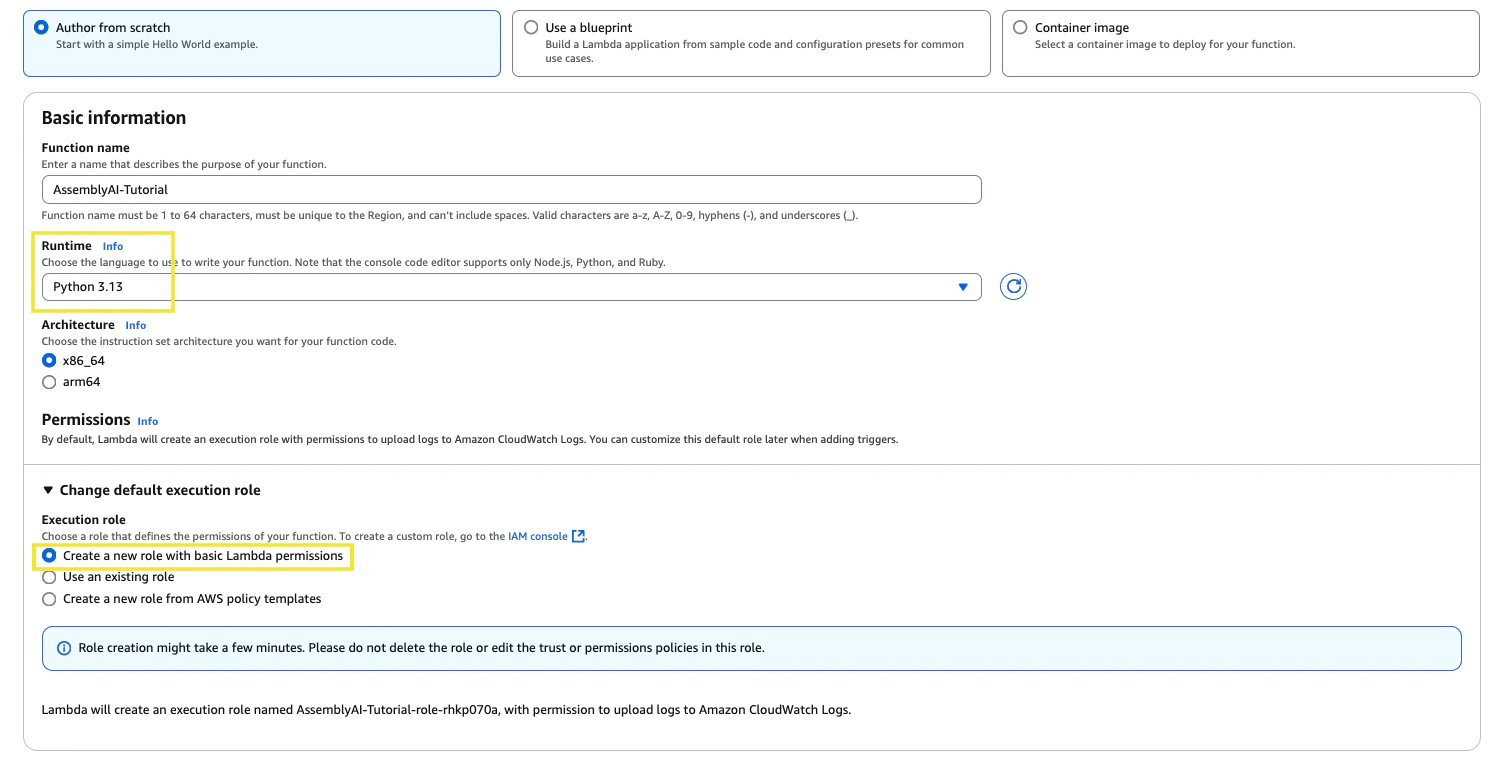
Navigate to the Lambda services page, and create a new function. Set the runtime to Python 3.13. In the Change default execution role section, choose the option to create a new role with basic Lambda permissions. Assign a function name and then click Create function.
3
In this new function, scroll down to the Code Source section and paste the following code into lambda_function.py.
import json
import os
import boto3
import http.client
import time
from urllib.parse import unquote_plus
import logging

# Configure logging

logger = logging.getLogger()
logger.setLevel(logging.INFO)

# Configuration settings

# See config parameters here: https://www.assemblyai.com/docs/api-reference/transcripts/submit

ASSEMBLYAI_CONFIG = {
# 'language_code': 'en_us',
# 'multichannel': True,
# 'redact_pii': True,
}

# Initialize AWS services

s3_client = boto3.client('s3')

def get_presigned_url(bucket, key, expiration=3600):
    """Generate a presigned URL for the S3 object"""

    logger.info({
        "message": "Generating presigned URL",
        "bucket": bucket,
        "key": key,
        "expiration": expiration
    })

    s3_client_with_config = boto3.client(
        's3',
        config=boto3.session.Config(signature_version='s3v4')
    )

    return s3_client_with_config.generate_presigned_url(
        'get_object',
        Params={'Bucket': bucket, 'Key': key},
        ExpiresIn=expiration
    )

def delete_transcript_from_assemblyai(transcript_id, api_key):
    """
    Delete transcript data from AssemblyAI's database using their DELETE endpoint.

    Args:
    transcript_id (str): The AssemblyAI transcript ID to delete
    api_key (str): The AssemblyAI API key

    Returns:
    bool: True if deletion was successful, False otherwise
    """

    headers = {
        "authorization": api_key,
        "content-type": "application/json"
    }

    conn = http.client.HTTPSConnection("api.assemblyai.com")

    try: # Send DELETE request to AssemblyAI API
        conn.request("DELETE", f"/v2/transcript/{transcript_id}", headers=headers)
        response = conn.getresponse()

        # Check if deletion was successful (HTTP 200)
        if response.status == 200:
            response_data = json.loads(response.read().decode())
            logger.info(f"Successfully deleted transcript {transcript_id} from AssemblyAI")
            return True
        else:
            error_message = response.read().decode()
            logger.error(f"Failed to delete transcript {transcript_id}: HTTP {response.status} - {error_message}")
            return False

    except Exception as e:
        logger.info(f"Error deleting transcript {transcript_id}: {str(e)}")
        return False
    finally:
        conn.close()

def transcribe_audio(audio_url, api_key):
    """Transcribe audio using AssemblyAI API with http.client"""
    logger.info({"message": "Starting audio transcription"})

    headers = {
        "authorization": api_key,
        "content-type": "application/json"
    }

    conn = http.client.HTTPSConnection("api.assemblyai.com")

    # Submit the audio file for transcription with config parameters

    request_data = {"audio_url": audio_url}

    # Add all configuration settings

    request_data.update(ASSEMBLYAI_CONFIG)

    json_data = json.dumps(request_data)
    conn.request("POST", "/v2/transcript", json_data, headers)
    response = conn.getresponse()

    if response.status != 200:
        raise Exception(f"Failed to submit audio for transcription: {response.read().decode()}")

    response_data = json.loads(response.read().decode())
    transcript_id = response_data['id']
    logger.info({"message": "Audio submitted for transcription", "transcript_id": transcript_id})

    # Poll for transcription completion

    while True:
        conn = http.client.HTTPSConnection("api.assemblyai.com")
        conn.request("GET", f"/v2/transcript/{transcript_id}", headers=headers)
        polling_response = conn.getresponse()
        polling_data = json.loads(polling_response.read().decode())

        if polling_data['status'] == 'completed':
            conn.close()
            logger.info({"message": "Transcription completed successfully"})
            return polling_data  # Return full JSON response instead of just text
        elif polling_data['status'] == 'error':
            conn.close()
            raise Exception(f"Transcription failed: {polling_data['error']}")

        conn.close()
        time.sleep(3)

def lambda_handler(event, context):
    """Lambda function to handle S3 events and process audio files"""
    try: # Get the AssemblyAI API key from environment variables
        api_key = os.environ.get('ASSEMBLYAI_API_KEY')
        if not api_key:
            raise ValueError("ASSEMBLYAI_API_KEY environment variable is not set")

        # Process each record in the S3 event
        for record in event.get('Records', []):
            # Get the S3 bucket and key
            bucket = record['s3']['bucket']['name']
            key = unquote_plus(record['s3']['object']['key'])

            # Generate a presigned URL for the audio file
            audio_url = get_presigned_url(bucket, key)

            # Get the full transcript JSON from AssemblyAI
            transcript_data = transcribe_audio(audio_url, api_key)

            # Prepare the transcript key - maintaining path structure but changing directory and extension
            transcript_key = key.replace('/CallRecordings/', '/AssemblyAITranscripts/', 1).replace('.wav', '.json')

            # Convert the JSON data to a string
            transcript_json_str = json.dumps(transcript_data, indent=2)

            # Upload the transcript JSON to the same bucket but in transcripts directory
            s3_client.put_object(
                Bucket=bucket,  # Use the same bucket
                Key=transcript_key,
                Body=transcript_json_str,
                ContentType='application/json'
            )
            logger.info({"message": "Transcript uploaded to transcript bucket successfully.", "key": transcript_key})

            # Uncomment the following line to delete transcript data from AssemblyAI after saving to S3
            # https://www.assemblyai.com/docs/api-reference/transcripts/delete
            # delete_transcript_from_assemblyai(transcript_data['id'], api_key)

        return {
            "statusCode": 200,
            "body": json.dumps({
                "message": "Audio file(s) processed successfully",
                "detail": "Transcripts have been stored in the AssemblyAITranscripts directory"
            })
        }

    except Exception as e:
        print(f"Error: {str(e)}")

        return {
            "statusCode": 500,
            "body": json.dumps({
                "message": "Error processing audio file(s)",
                "error": str(e)
            })
        }
4
At the top of the lambda function, you can edit the config to enable features for your transcripts. To see all available parameters, check out our API reference.
ASSEMBLYAI_CONFIG = {
   # 'language_code': 'en_us',
   # 'multichannel': True,
   # 'redact_pii': True,
}
If you would like to delete transcripts from AssemblyAI after completion, you can uncomment line 166 to enable the delete_transcript_from_assemblyai function. This ensures the transcript data is only saved on your S3 database and not stored on AssemblyAI’s database.
Once you have finished editing the lambda function, click Deploy to save your changes.
5
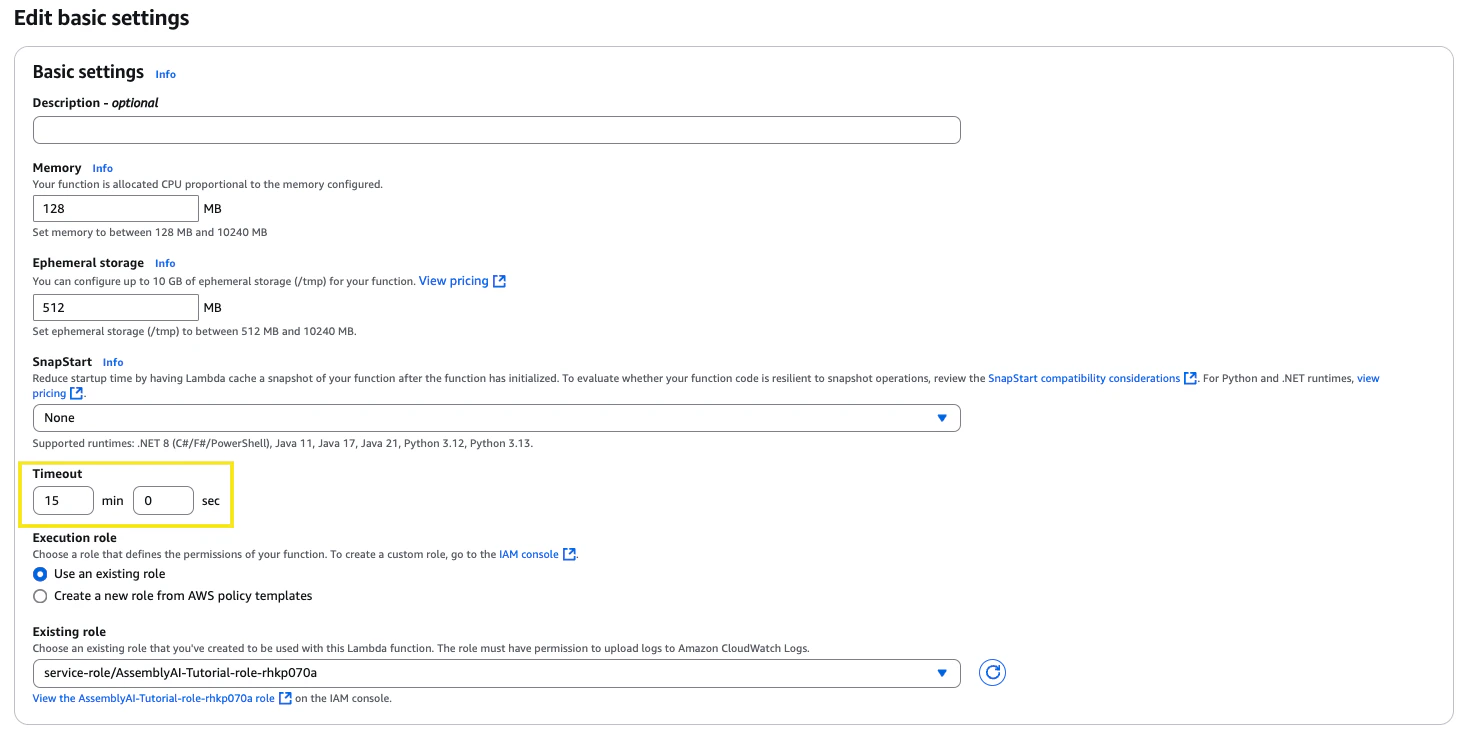
On the same page, navigate to the Configuration section, under General configuration adjust the timeout to 15min 0sec and click Save. The processing times for transcription will be a lot shorter, but this ensures plenty of time for the function to complete.
6
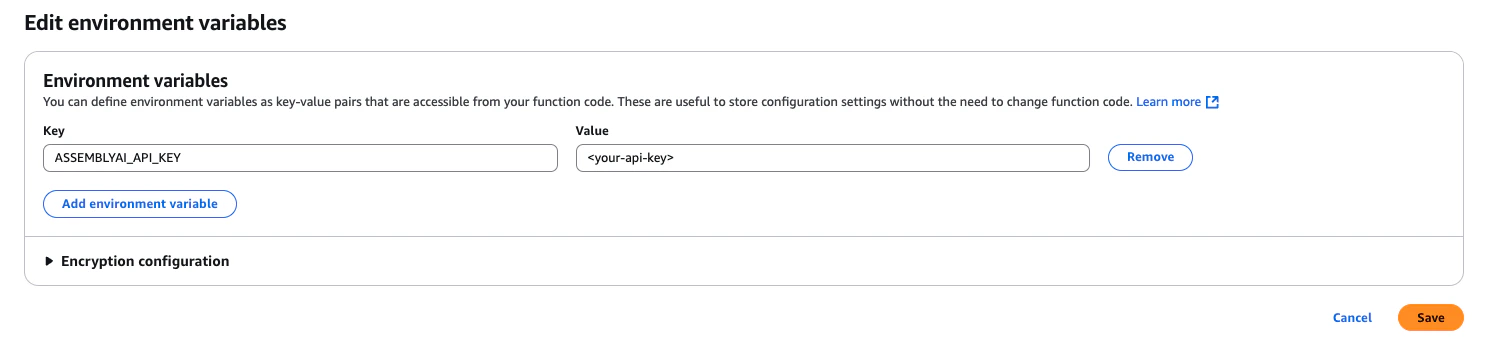
Now from this page, on the left side panel click Environment variables. Click edit and then add an environment variable, ASSEMBLYAI_API_KEY, and set the value to your AssemblyAI API key. Then click Save.
7
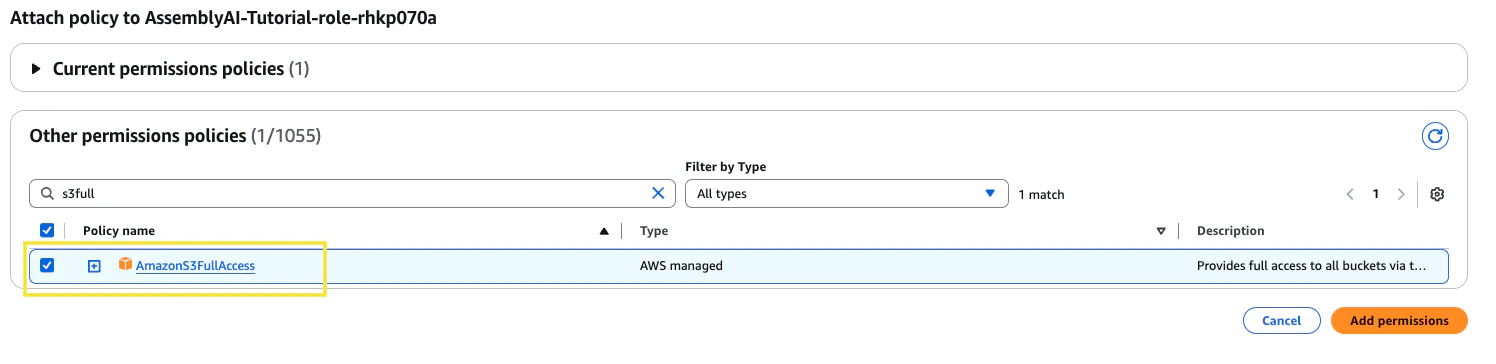
Now, navigate to the IAM services page. On the left side panel under Access Management click Roles and search for your Lambda function role (it’s structure should look like function_name-role-id). Click into the role and then in the Permissions policies section click the dropdown for Add permissions and then select Attach policies.From this page, find the policy named AmazonS3FullAccess and click Add permissions.
8
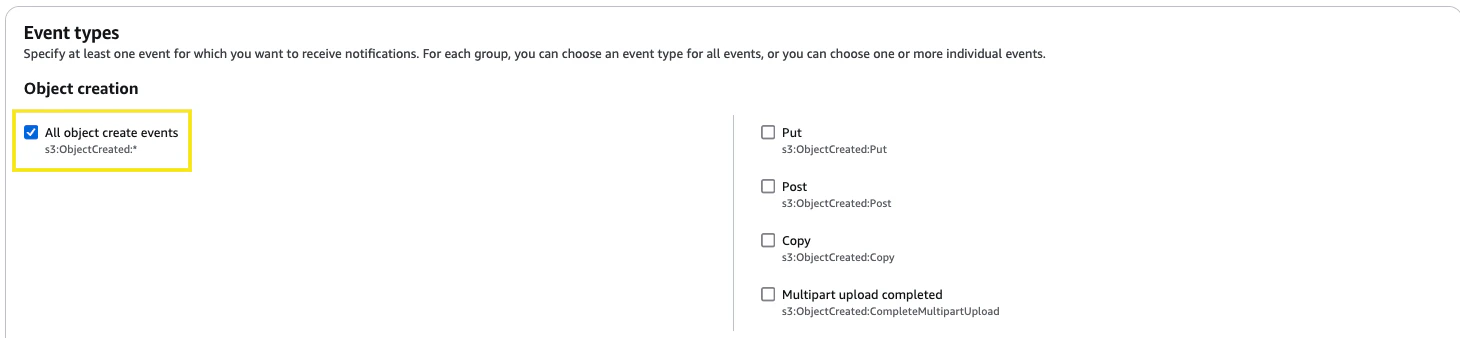
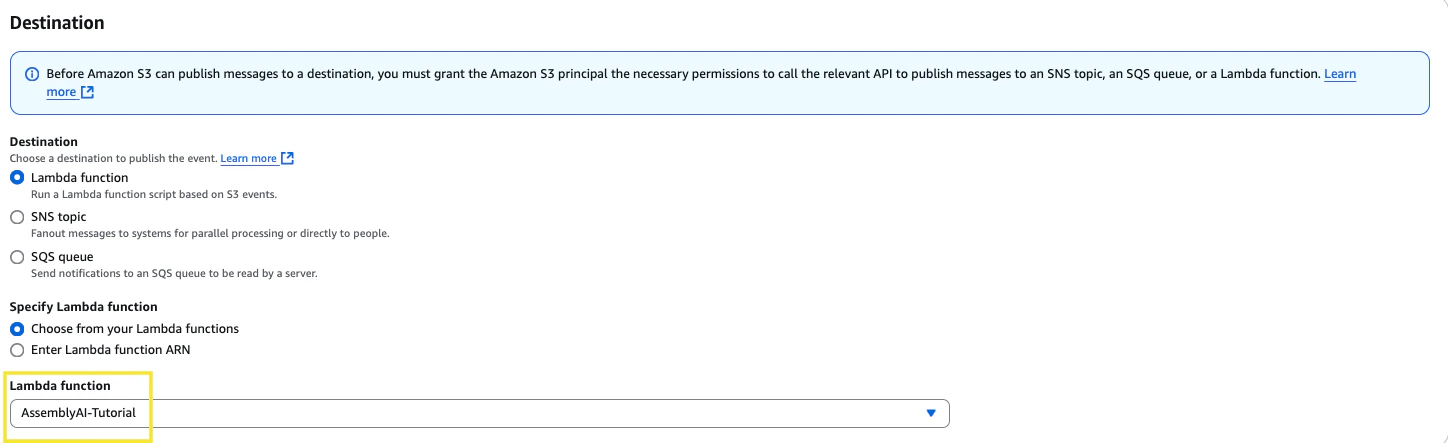
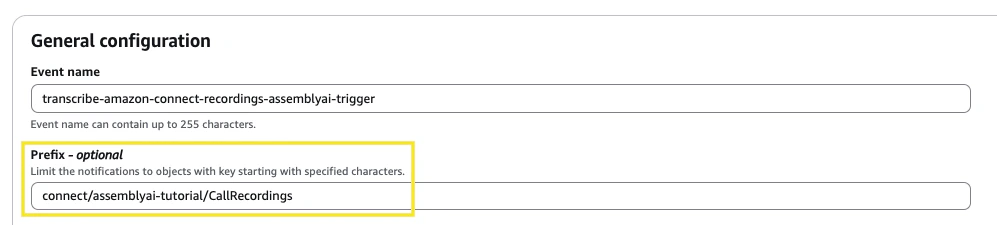
Now, navigate to the S3 services page and click into the general purpose bucket where your Amazon Connect recordings are stored. Browse to the Properties tab and then scroll down to Event notifications. Click Create event notification. Give the event a name and then in the prefix section, insert the folder path we noted from Step 1 to ensure the event is triggered for the correct folder.Then in the Event types section, select All object create events.Then scroll down to the Destination section, set the destination as Lambda function and then select the Lambda function we created in Step 2. Then click Save changes.
9
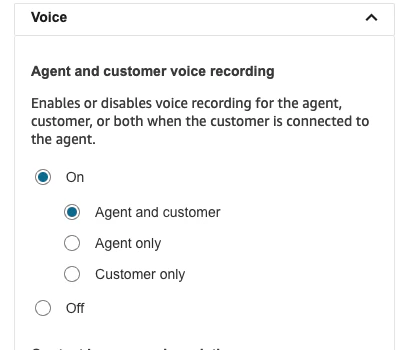
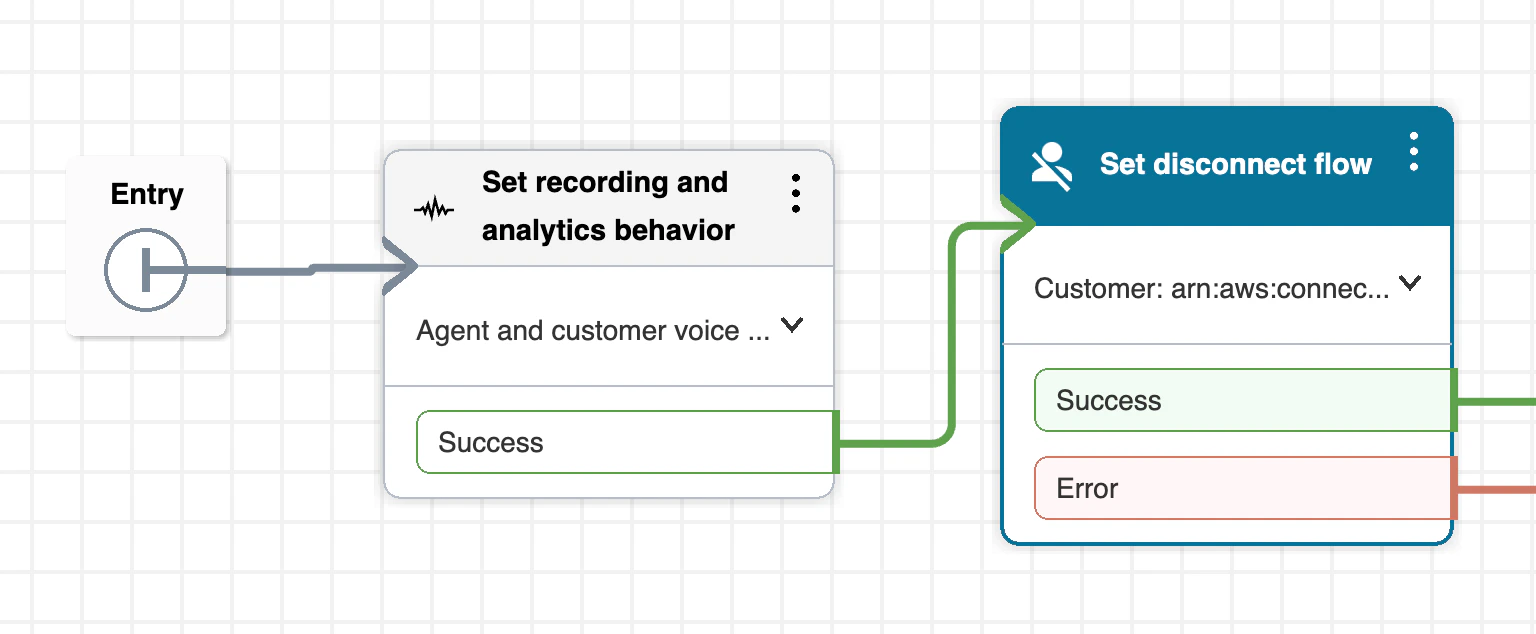
To finalise the integration, we’ll need to set the recording behaviour from within your AWS Contact Flows. Navigate to your Amazon Connect instance access URL and sign in to your Admin account. In the left side panel, navigate to the Routing section and then select Flows.Choose a flow to test with, in this case we’ll utilize the Sample inbound flow (first contact experience). You should see the Block Library on the left hand side of the page. In this section, search for Set recording and analytics behaviour and then drag the block into your flow diagram and connect the arrows.You can see in our example, we place the block right at the entry of the call flow:After connecting this block, click the 3 vertical dots in the top right of the block and select Edit settings. Scroll down to the Enable recording and analytics subsection and expand the Voice section. Then select On and select Agent and customer (or whoever you’d like to record). Then click Save, click Save again in the top right and then click Publish to publish the flow.With this new flow published, you should now receive recordings for your Amazon Connect calls that utilize that flow, and you should now receive AssemblyAI transcripts for those recordings!
The Amazon Connect Call Recordings are saved in the S3 bucket with this naming convention: /connect/{instance-name}/CallRecordings/{YYYY}/{MM}/{DD}/{contact-id}_{YYYYMMDDThh:mm}_UTC.wavThe AssemblyAI Transcripts will be saved in the S3 bucket with this naming convention: /connect/{instance-name}/AssemblyAITranscripts/{YYYY}/{MM}/{DD}/{contact-id}_{YYYYMMDDThh:mm}_UTC.json
10
To view the logs for this integration, navigate to the CloudWatch services page and under the Logs section, select Log groups. Select the log group that matches your Lambda to view the most recent log stream.